Multipass [Link] is not a hypervisor. It is a tool to quickly spin up fresh Ubuntu VMs (Virtual Machines) using the native hypervisor of the OS (Operating System), or LXC on Linux (highly recommended).
It is straightforward for launching disposable instances for development and testing, but is not recommended for production except for non-mission critical workloads.
Find out more in this post about Snap vs Docker vs Multipass [Link].
INSTALLING
sudo apt update
sudo apt install snapd
sudo snap install multipass --classic
On Linux, it is recommended to have LXD installed so Multipass deploys system containers instead of virtual machines:
sudo snap install lxd
sudo snap connect multipass:lxd lxd
sudo multipass set local.driver=lxd
GUI
The graphical user interface was released in late July 2024. It provides a clean visual experience.
See the example below of what the home page looks like.
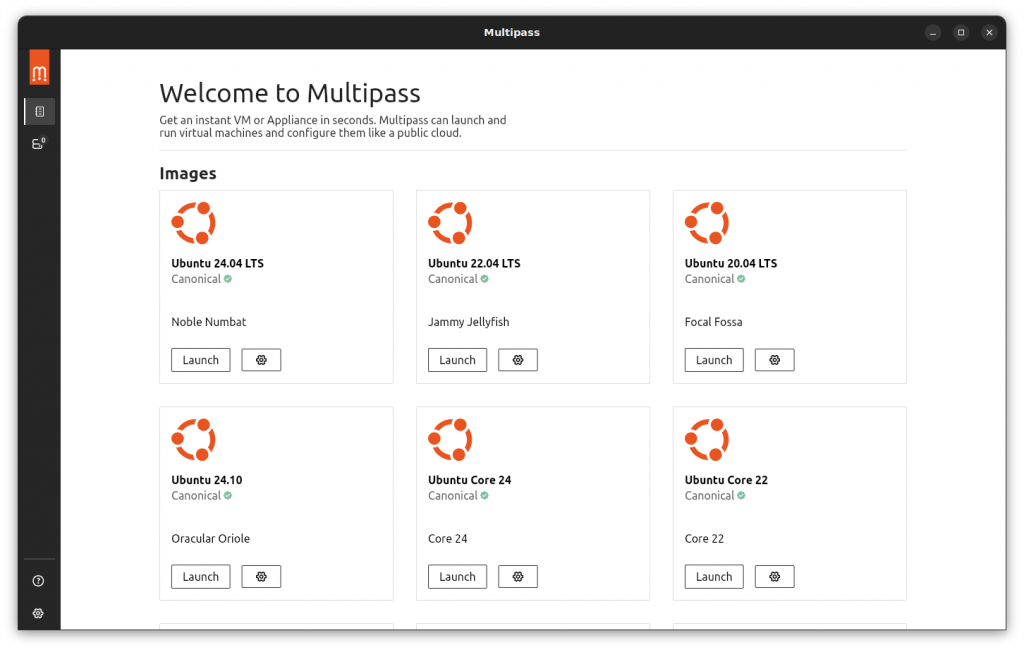
Clicking the settings button (gear icon) lets you set a custom name and configure CPU, RAM, and disk size.
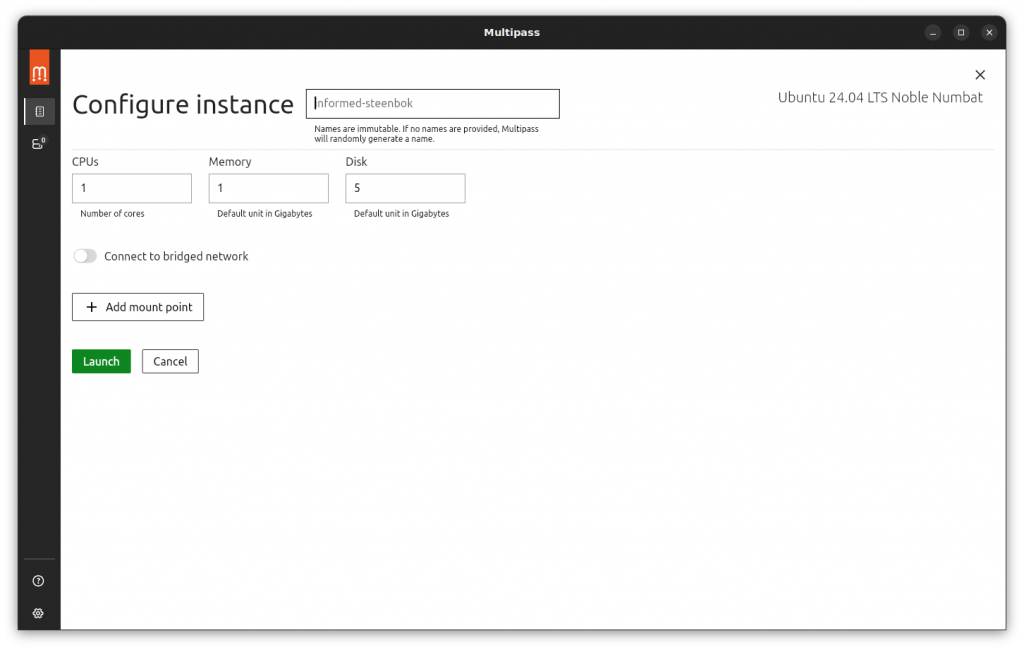
The “Launch” button handles everything, and the progress feedback is much better than the CLI.

Voilà!
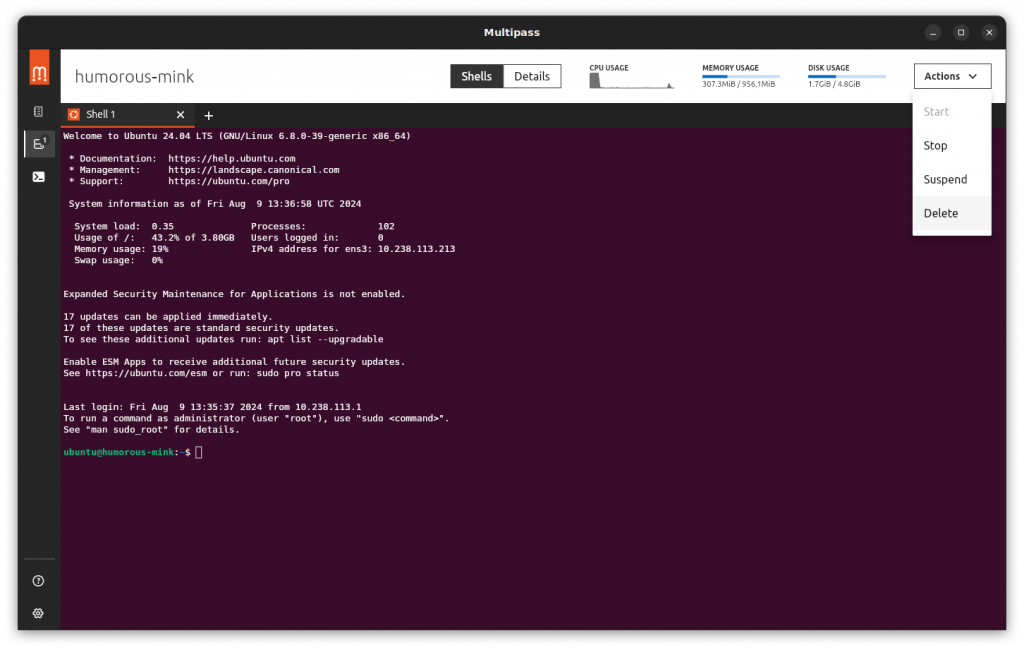
The “Actions” menu contains the basic controls for starting, stopping, suspending, and deleting an instance.
USING
Searching for Images
multipass find
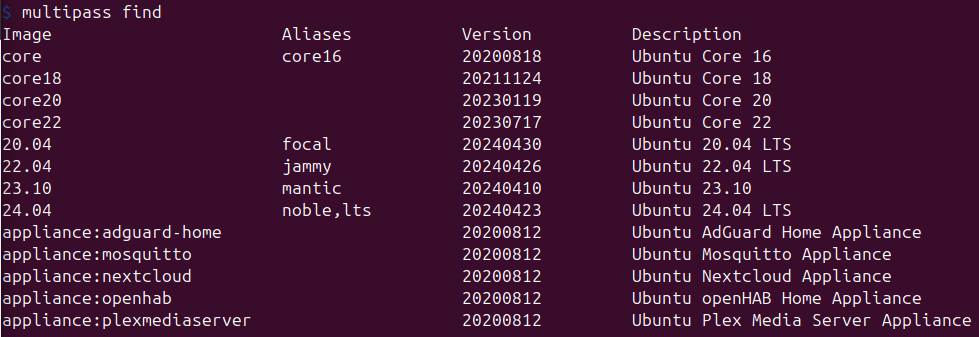
Only Ubuntu images. What a surprise!
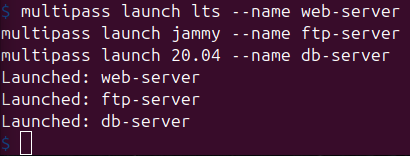
Launching an Instance – Automatically downloads and runs.
multipass launch lts --name web-server
multipass launch jammy --name ftp-server
multipass launch 20.04 --name db-server
- Optional Parameters
- –cpu 2
- –mem 2G
- –disk 20G
- –mount /Host_Path:/Guest_Path
- –bridged
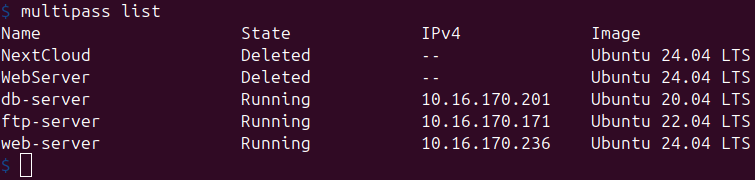
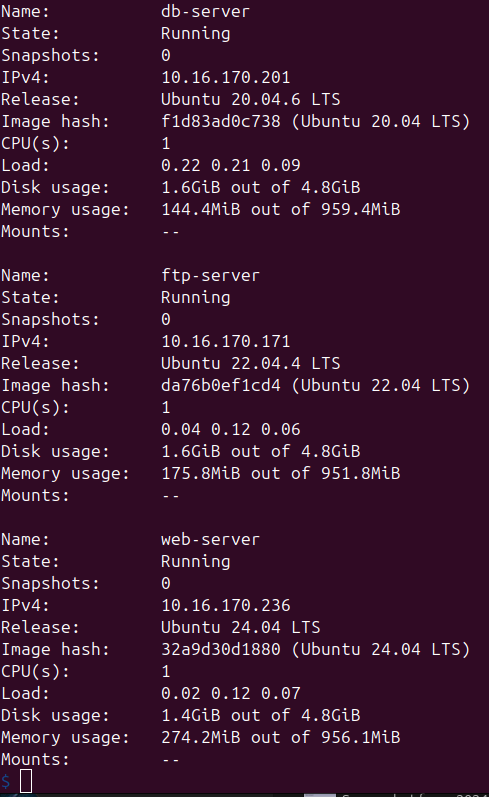
Gathering Information
multipass list
multipass info
Executing Commands and Getting Shells
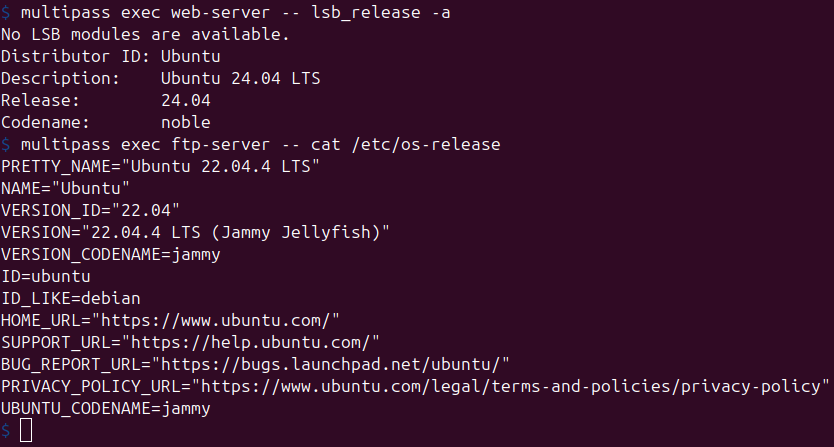
multipass exec web-server -- lsb_release -a
multipass exec ftp-server -- cat /etc/os-release
multipass shell db-server
Managing Instances
Operating
multipass stop web-server ftp-server
multipass start web-server
multipass delete web-server db-server
multipass purge
Modifying
multipass stop ftp-server
multipass set local.ftp-server.cpus=4
multipass set local.ftp-server.disk=50G
multipass set local.ftp-server.memory=4G
Backups and Snapshots
multipass snapshot ftp-server
multipass list --snapshots
multipass restore ftp-server.snapshot1
multipass delete ftp-server.snapshot1
Creating Aliases
Aliases allow running commands inside a guest as if they were running on the host.
multipass alias ftp-server:htop
htop
multipass aliases
multipass unalias htop
multipass unalias --all
Configuring Bridge
multipass networks
multipass set local.driver=virtualbox
multipass set local.bridged-network=en0
Note: The first command sets the driver Multipass uses to communicate with network adapters. On macOS it uses VirtualBox’s drivers. The second command specifies the bridge interface (on macOS, en0 is Wi-Fi and en1 is Ethernet).
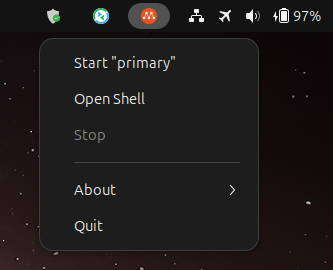
Taskbar Integration
Deploy a new instance with a single click:
Uninstalling Multipass
sudo snap remove multipass
Good luck with your projects!