This post will download a TrueNAS ISO and boot it to install on Linode and DigitalOcean cloud providers, just as you would on a local virtual or physical machine.
TrueNAS is an open-source Network-Attached Storage operating system based on FreeBSD that uses the OpenZFS file system. TrueNAS CORE (previously known as FreeNAS) is the world’s most popular software-defined storage.
LINODE
- After creating a Linode (minimum 4GB RAM recommended), Power Off.
- Go to Settings > Shutdown Watchdog > Disable.
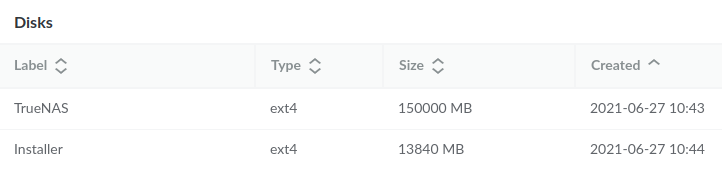
- In Storage, delete all existing disks and create new ones, allocating enough space on the secondary disk for the ISO installation.
Example disk layout for a Linode with 160GB SSD:
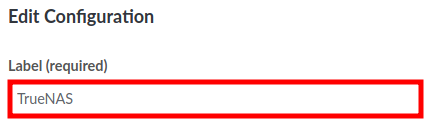
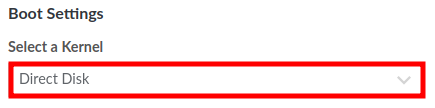
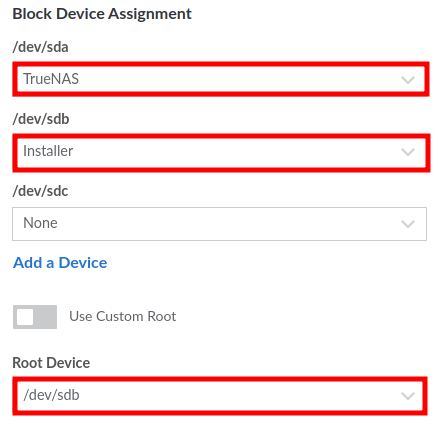
- Go to Configuration > Edit and update the settings as follows:
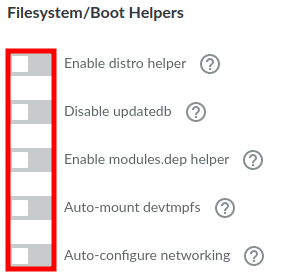
- Power On in Rescue Mode and run the following command in the WEBLISH Console:
curl https://download.freenas.org/12.0/STABLE/U4/x64/TrueNAS-12.0-U4.iso | dd of=/dev/sdb
- Once the download is complete, Reboot and open the GLISH Console to begin the installation:
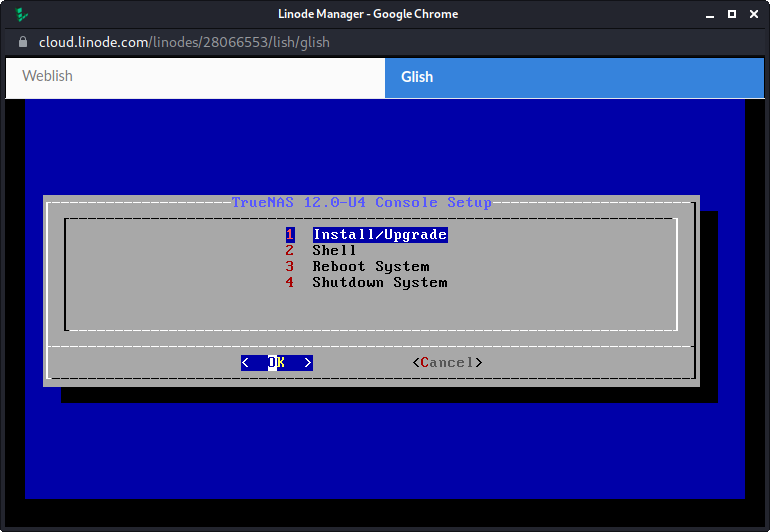
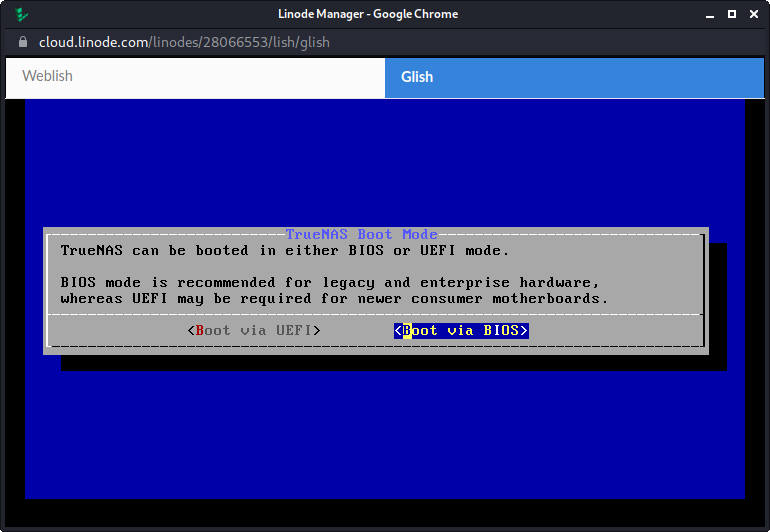
- Follow the installation steps and select Boot via BIOS when prompted:
- When installation is complete, Power Off the VM, then go to Configuration > Edit and set the root device to the newly installed system disk:

- Power On the VM and monitor the boot process in the GLISH Console. This may take a few minutes.

- Open a browser and navigate to the address shown on screen.
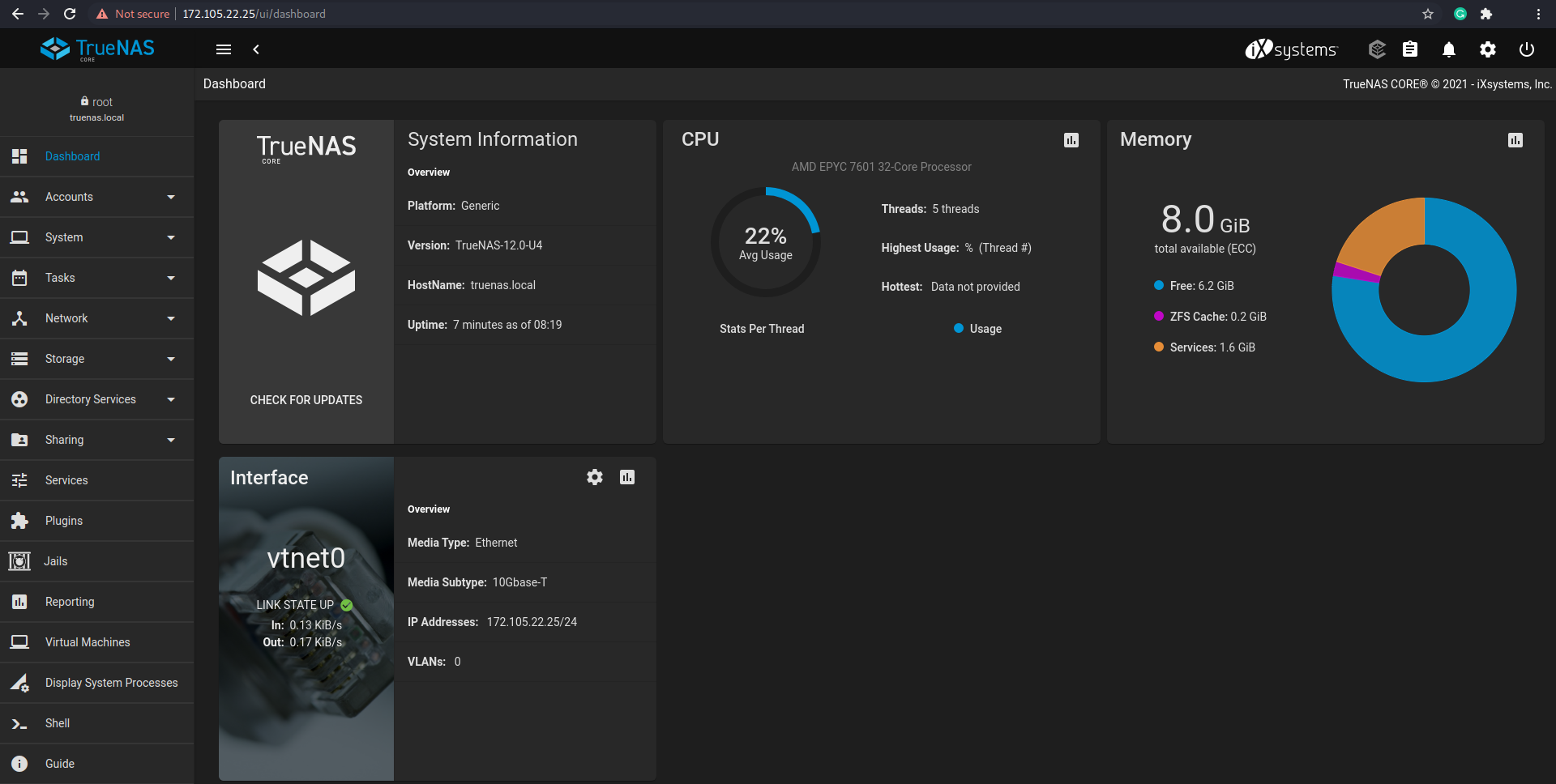
- Installation is complete. A few additional recommendations:
- Always use HTTPS instead of HTTP.
- Use a proper SSL/TLS certificate instead of the default self-signed one.
- Use Linode’s Firewall to restrict access to your NAS, allowing only trusted sources such as your physical or virtual network IPs.
- If your clients are also on Linode, allow access over a VLAN or via private IPs to avoid metered traffic on the public interface.
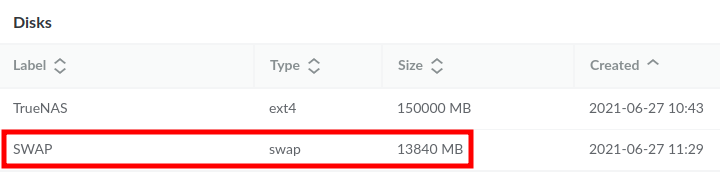
- Consider powering down the VM, deleting the temporary installation partition, and converting it to a SWAP partition:
DIGITAL OCEAN
DigitalOcean does not offer a disk manager configuration like Linode, so booting directly from an ISO image is not possible.
The workaround is to overwrite the boot block device with the TrueNAS ISO to run the installer in place of FreeBSD. TrueNAS is then installed onto an attached volume, and finally copied from that volume to the root of the Droplet disk (after which the volume can be removed).
This same technique can be used to install pfSense and other distributions.
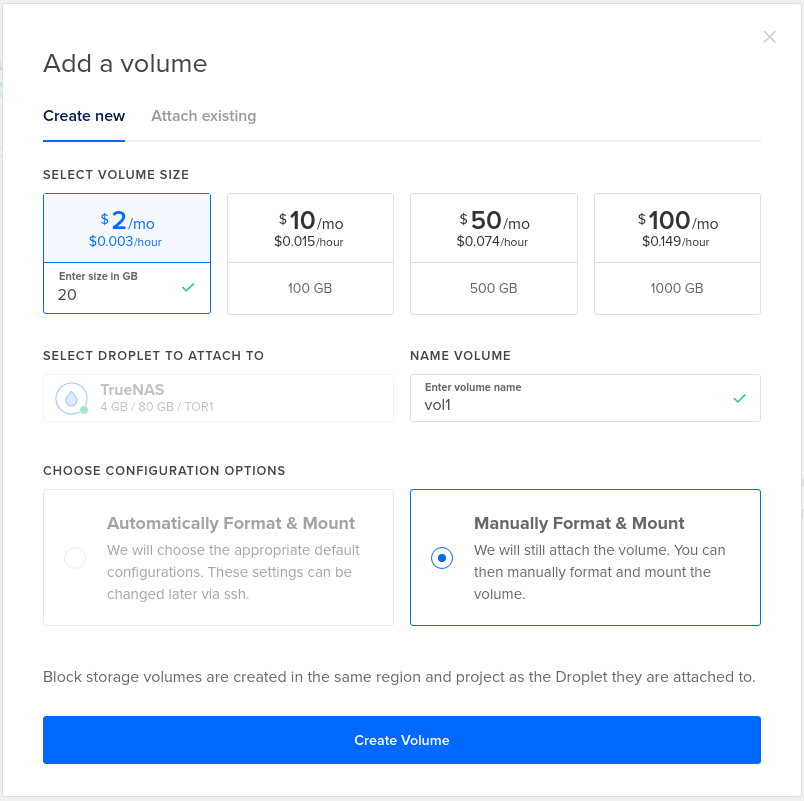
- After creating a FreeBSD Droplet (minimum 4GB RAM recommended), attach a Volume to it:
- SSH into the Droplet and run:
wget https://download.freenas.org/12.0/STABLE/U4/x64/TrueNAS-12.0-U4.iso
swapoff /dev/gpt/swap
sysctl kern.geom.debugflags=0x10
dd if=TrueNAS-12.0-U4.iso of=/dev/vtbd0 bs=512k
shutdown -r now
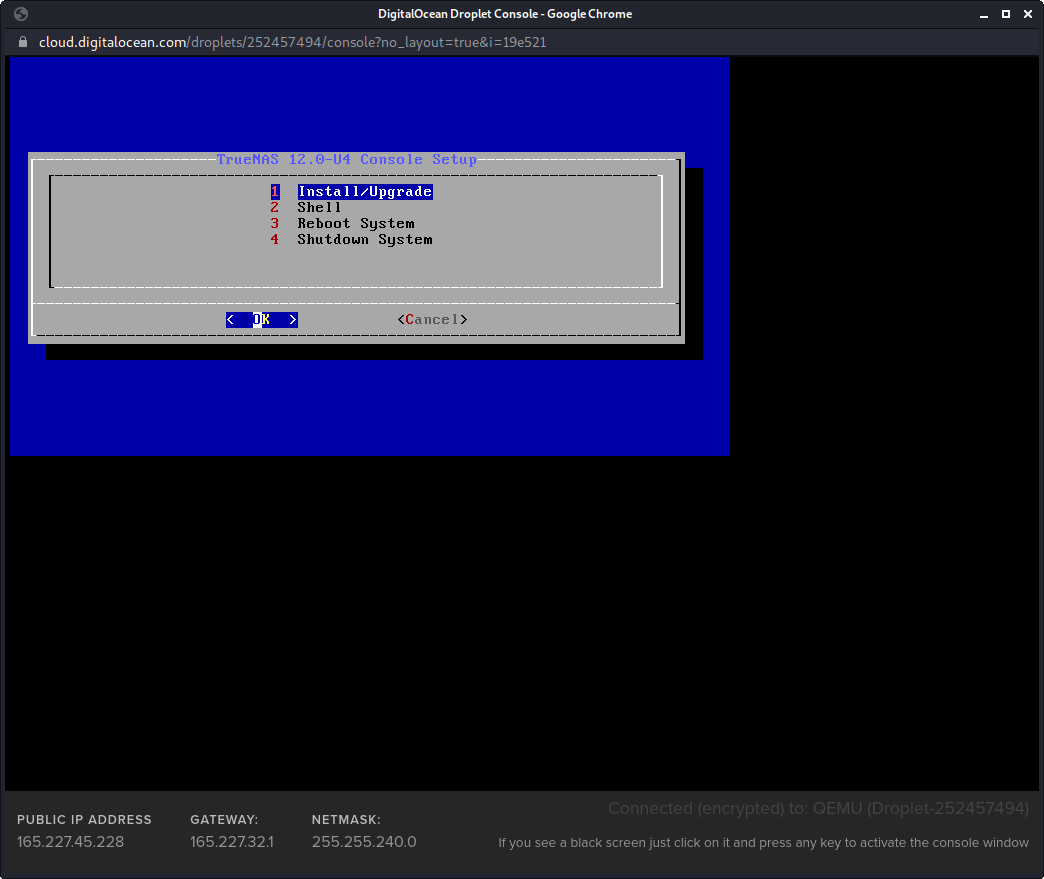
- Open the Droplet Console and proceed with the installation:
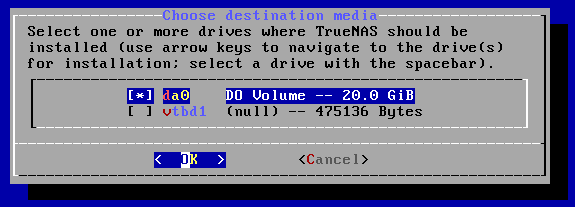
- When prompted, select /dev/da0 (the attached volume) as the installation target:
- Once installation is complete, turn off the VM.
- Go to Destroy > Rebuild using the same FreeBSD version as before.
- SSH into the Droplet again and run:
swapoff /dev/gpt/swap
sysctl kern.geom.debugflags=0x10
dd if=/dev/da0 of=/dev/vtbd0 bs=512k
shutdown -r now
- The VM will reboot without network connectivity.
- Open the Console and configure the NIC:
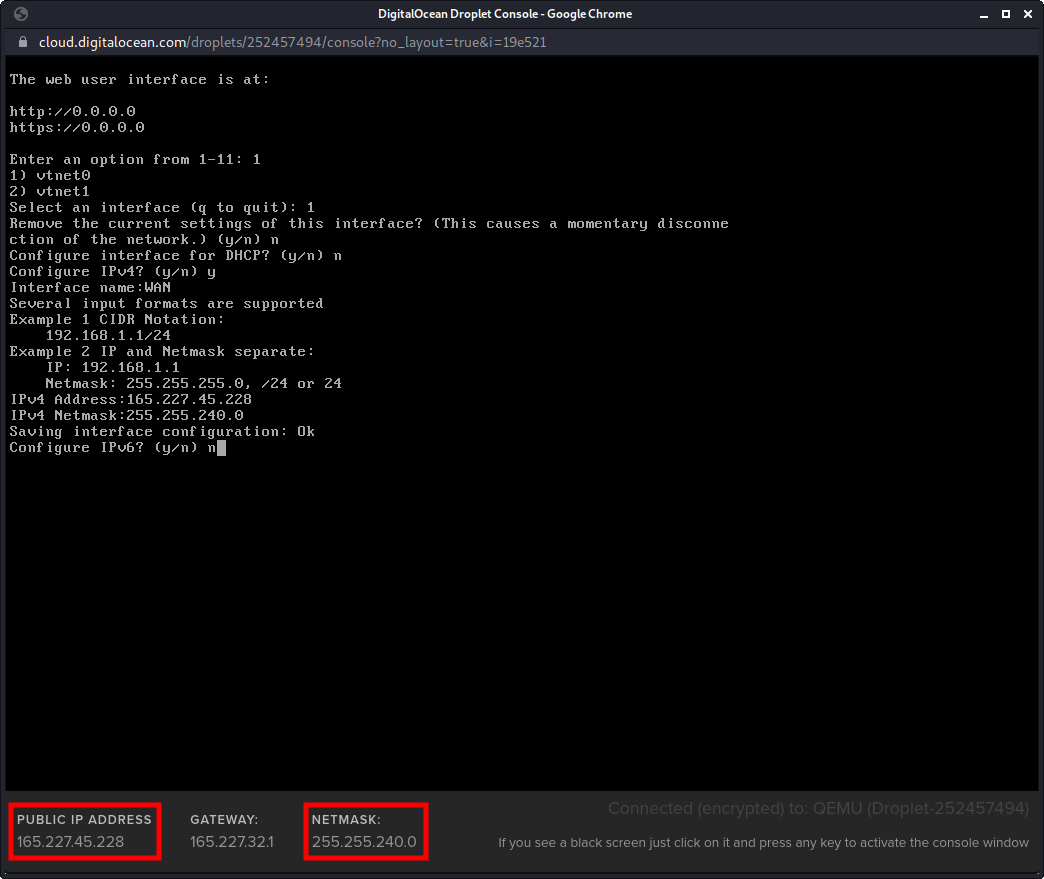
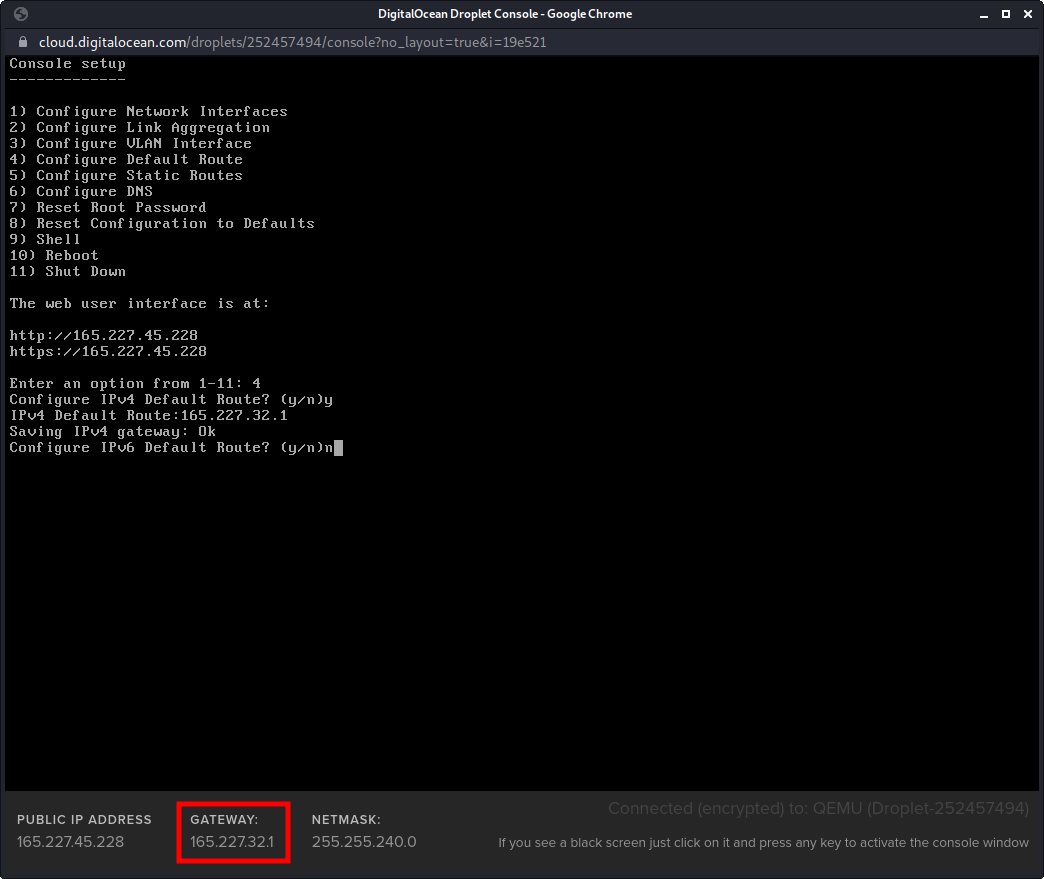
- Set the default gateway to give the server internet access:
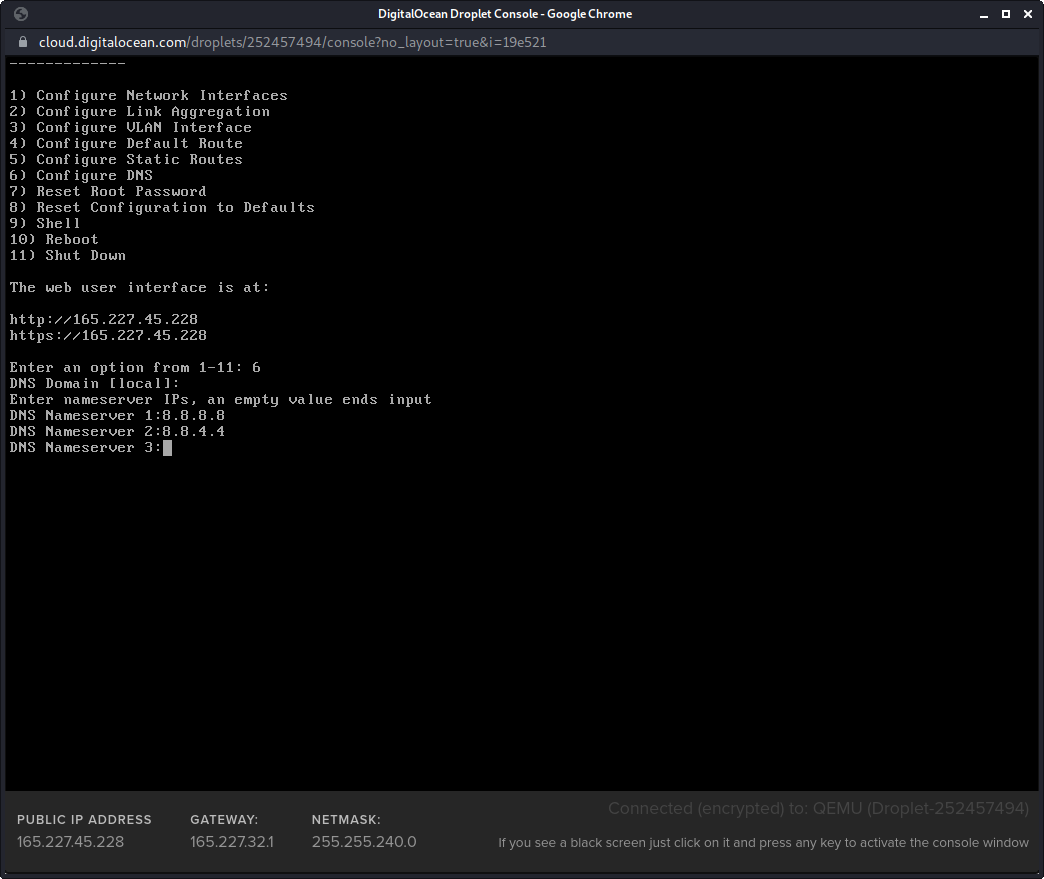
- Configure DNS:
- Open a browser, navigate to the address shown on screen, and log in with the root user and the password set during installation.
- The attached volume can now be deleted, or kept and added to a pool to expand the NAS storage capacity.
- To use the remaining unpartitioned space on the main disk (only 20GB is used by the system and the GPT is corrupted), run:
gpart show vtbd0
gpart recover vtbd0
gpart show vtbd0
gpart add -t freebsd-ufs -b 41911336 -s 125860784 vtbd0
gpart show vtbd0
newfs -U /dev/vtbd0p3
mkdir /local_storage
mount /dev/vtbd0p3 /local_storage
Note: the highlighted numbers refer to the BEGIN offset and SIZE of the free space to be allocated as the new partition.